
If you have ever watched a script crash on a cookie banner or a login redirect, you know the feeling. The page loads. Your careful CSS selectors fail. A human would just click the obvious button and move on. Until now, code could not do that reliably. Gemini 2.5 Computer Use changes the game by giving an AI both eyes and hands in the browser. It sees a screenshot, it decides what to do, it clicks or types, and it does it again until the job is done. Think of it as a patient junior engineer who never gets tired.
I have been testing it on real tasks, including fetching live gold rates, and it behaves like a solid teammate. It is not magic. Gemini 2.5 Computer Use is a clean loop that you can understand, inspect, and ship.
Table of Contents
1) What Is A Google Gemini Agent And How Does “Computer Use” Power It?
A Google Gemini agent is an AI service that takes a goal, plans a path, and executes the steps inside software you already use. Gemini 2.5 Computer Use is the specialized engine that lets those agents operate a real browser with human grade actions. Instead of relying only on structured APIs, the agent can log in, fill forms, select from dropdowns, scroll, and submit. That matters because a huge portion of work lives behind interfaces that were built for people, not scripts.
Under the hood, Gemini 2.5 Computer Use accepts three inputs, a short instruction, a screenshot of the current screen, and a short history of recent actions. It returns a function call that represents the next UI action. Your client code then executes that call with Playwright or a similar driver, captures a fresh screenshot, and sends the result back in a tight loop. If Gemini 2.5 Computer Use proposes a risky step, for example a purchase or a message send, it asks for confirmation. You decide. That is the basic contract that powers practical agents you can reason about and trust.
Gemini 2.5 Computer Use is browser first. It already shows promise on mobile UI control, although desktop OS level control is outside scope right now. That clarity helps when you plan what to build.
2) The Agent Loop, Understanding The Core Architecture
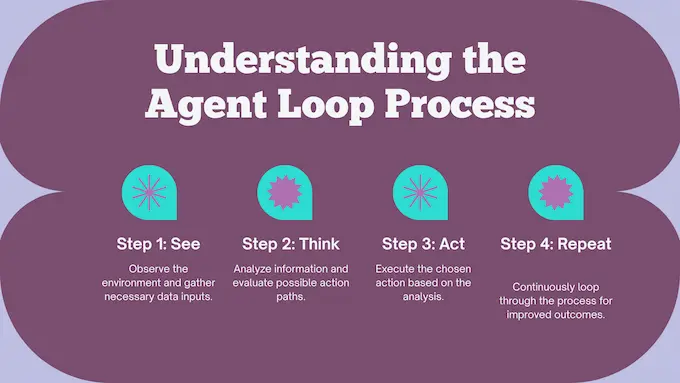
You can frame the system in four verbs that anyone on your team can remember. See. Think. Act. Repeat.
- See, take a screenshot of the current browser state.
- Think, pass the screenshot and goal to Gemini 2.5 Computer Use and let it choose a next action.
- Act, execute the action, navigate, click, type, key combo, drag, or scroll.
- Repeat, send back the new screenshot and URL and continue until you hit the finish criteria.
This is the shape of modern browser control AI. The loop gives you a predictable backbone that scales from tiny chores to multi page workflows. You can unit test each action adapter. You can log every screenshot and prompt for audit. That discipline is what turns an AI browser agent from a demo into a dependable tool.
3) How To Try It Right Now, For Free
The fastest way to get hands on is the Browserbase Gemini demo. It spins up a clean environment and lets you prompt a real session. Try this short instruction, then watch the agent move with intent.
“Open a reputable site that lists the live gold spot price, capture the current XAU price with timestamp, write a three bullet summary, and save a screenshot for evidence.”
You should see the agent search, land on a price page, and extract the data. If you want to bring this into your stack, open Google AI Studio and run the same idea through the Gemini API. This will feel like a normal developer workflow, not a black box.
4) A Step By Step Tutorial, Building A Gold Price Bot
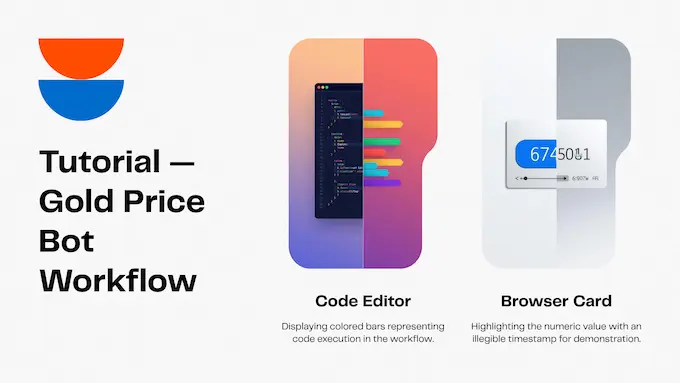
Let’s turn the same idea into a small, production style script powered by Gemini 2.5 Computer Use. We will keep the moving parts simple and readable. This is a practical Gemini API tutorial that you can drop into a repo and adapt to your own targets.
4.1) Step 1, Setting Up Your Environment
Install dependencies, set your credentials, and pick a sensible viewport. Gemini 2.5 Computer Use emits normalized coordinates that you convert to pixels. A 1440 by 900 viewport works well in practice.
pip install google-genai playwright
python -m playwright install chromium
export GOOGLE_GENAI_API_KEY="YOUR_API_KEY"
4.2) Step 2, The Main Agent Loop In Python
This loop is the heart of how to use Gemini Computer Use in code. It sends the goal and a screenshot, then executes whatever UI action comes back. It keeps going until Gemini 2.5 Computer Use stops proposing actions or we hit a step limit.
from google import genai
from google.genai import types
from google.genai.types import Content, Part
from playwright.sync_api import sync_playwright
import time
import re

SCREEN = {"width": 1440, "height": 900}

def denorm(n, size):
    return int(n / 1000 * size)

def execute(part, page):
    fc = part.function_call
    name = fc.name
    args = fc.args or {}
    if name == "navigate":
        page.goto(args["url"])
    elif name == "click_at":
        x = denorm(args["x"], SCREEN["width"])
        y = denorm(args["y"], SCREEN["height"])
        page.mouse.click(x, y)
    elif name == "type_text_at":
        x = denorm(args["x"], SCREEN["width"])
        y = denorm(args["y"], SCREEN["height"])
        page.mouse.click(x, y)
        if args.get("clear_before_typing", True):
            page.keyboard.press("Meta+A")
            page.keyboard.press("Backspace")
        page.keyboard.type(args["text"])
        if args.get("press_enter", True):
            page.keyboard.press("Enter")
    elif name == "scroll_document":
        page.mouse.wheel(0, 800 if args.get("direction") == "down" else -800)
    elif name == "go_back":
        page.go_back()
    elif name == "go_forward":
        page.go_forward()
    else:
        print(f"Unimplemented action: {name}")

def screenshot_part(page):
    png = page.screenshot(type="png")
    return Part.from_bytes(data=png, mime_type="image/png")

def extract_price_and_time(text):
    # Simple heuristic extraction, adjust to your preferred sources
    price = None
    ts = None
    m = re.search(r"(\bXAU\b.*?)(\\$|USD)?\\s*([0-9]{1,4}(?:\\,[0-9]{3})*(?:\\.[0-9]+)?)", text, re.I)
    if m:
        price = m.group(3)
    t = re.search(r"(Updated|As of)[:\\s]+([^\\n]+)", text, re.I)
    if t:
        ts = t.group(2)
    return price, ts

def run():
    goal = ("Find the live gold spot price for XAU on a reputable site, "
            "capture the numeric price and visible timestamp, "
            "return a three bullet summary with the source URL, "
            "and save a screenshot.")
    client = genai.Client()
    config = types.GenerateContentConfig(
        tools=[types.Tool(computer_use=types.ComputerUse(
            environment=types.Environment.ENVIRONMENT_BROWSER,
            excluded_predefined_functions=["drag_and_drop"]
        ))],
    )

    with sync_playwright() as p:
        browser = p.chromium.launch(headless=False)
        context = browser.new_context(viewport=SCREEN)
        page = context.new_page()
        page.goto("https://www.google.com")

        contents = [Content(role="user", parts=[Part(text=goal), screenshot_part(page)])]

        for turn in range(12):
            resp = client.models.generate_content(
                model="gemini-2.5-computer-use-preview-10-2025",
                contents=contents,
                config=config,
            )
            cand = resp.candidates[0]
            contents.append(cand.content)

            actions = [pt for pt in cand.content.parts if getattr(pt, "function_call", None)]
            if not actions:
                # Model is done, try to summarize the visible page
                text = " ".join(pt.text for pt in cand.content.parts if getattr(pt, "text", None))
                price, ts = extract_price_and_time(text)
                print("SUMMARY:")
                print(f"- Price: {price or 'not found'}")
                print(f"- Timestamp: {ts or 'not found'}")
                print(f"- URL: {page.url}")
                page.screenshot(path="gold_evidence.png", type="png")
                break

            for act in actions:
                execute(act, page)
            page.wait_for_load_state("load")
            time.sleep(1)

            contents.append(Content(
                role="user",
                parts=[Part(function_response=types.FunctionResponse(
                    name="actions_batch",
                    response={"url": page.url},
                    parts=[types.FunctionResponsePart(
                        inline_data=types.FunctionResponseBlob(
                            mime_type="image/png", data=page.screenshot(type="png")
                        )
                    )]
                ))]
            ))

        browser.close()

if __name__ == "__main__":
    run()
Run it from your terminal. You will see the browser work through the steps and produce a gold_evidence.png file for your records.
4.3) Step 3, Executing Actions From Model To Mouse Clicks
The function call format is compact and predictable. Actions arrive like navigate, click_at, type_text_at, or scroll_document. Each comes with arguments in a normalized 0 to 999 coordinate space. Your wrapper converts those to pixel values and calls the right Playwright method. The adapter layer is small enough to reason about. Keep it boring and testable.
4.4) Step 4, Putting It All Together
A real agent needs three things, clean goal prompts, clear finish criteria, and strong evidence. The goal tells the model what good looks like. The finish criteria stop the loop when you have what you need. The evidence is your screenshot and URL trail. With that in place, you can drop the agent into a Browserbase Gemini workspace for cloud runs or wire it into a Vertex AI generative AI pipeline alongside your existing services. Gemini 2.5 Computer Use scales with this architecture.
5) Gemini 2.5 Computer Use Pricing, What Will This Actually Cost?
Pricing changes, so always check the console before you ship. The table below reflects the preview tier at the time of writing, in US dollars per one million tokens. Treat it as planning guidance for experiments, then measure your own runs.
| Tier | Input Price | Output Price | Notes |
|---|---|---|---|
| Free Tier | Not available | Not available | Experiment in hosted demos |
| Paid, prompts up to 200k tokens | $1.25 | $10.00 | Model code gemini-2.5-computer-use-preview-10-2025 |
| Paid, prompts over 200k tokens | $2.50 | $15.00 | Higher context carries higher cost |
A rough scenario helps. Suppose your gold price bot runs 8 to 12 steps, with a small instruction and a few screenshots. You may sit around tens of thousands of input tokens and a modest text output. Expect cents per run, not dollars, for short tasks. Long crawling jobs will cost more. Measure, then decide.
6) Safety First, Understanding The Built In Guardrails
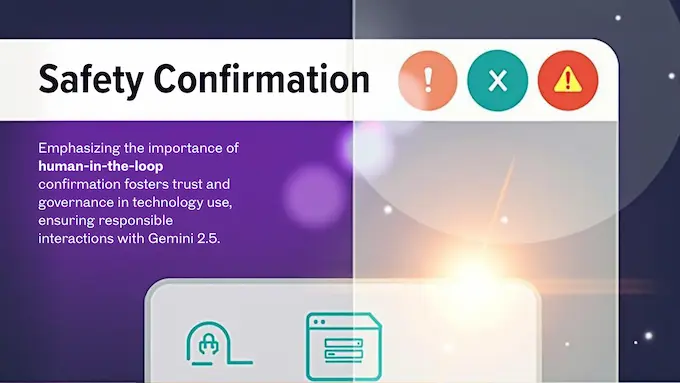
Gemini 2.5 Computer Use ships with a per step safety service that inspects each proposed action. When a step looks risky, for example a checkout button, a data download, or sending a message, the model attaches a require_confirmation flag. Your app must show a clear prompt and wait for the user to approve. The terms require that you honor that rule. On top of that, you can add system instructions that forbid classes of actions, or force confirmation on your own list, for example any file upload.
Run agents in a sandboxed environment. Use a clean browser profile. Scrub secrets from logs. Add allowlists or blocklists of domains. And always keep a human in the loop when there is material risk in a mistake. Safety is not an afterthought. It is part of the API.
7) Performance And The Competition, Is It Actually Good?
Benchmarks are not the whole story, yet they are a useful compass. The current results show strong performance on agent tasks with real web pages. What impressed me is the quality to latency ratio in a matched Browserbase harness, because that is what your users feel.
7.1) Benchmarks Summary
| Benchmark | Source Or Harness | Gemini 2.5 Computer Use | Claude Sonnet 4.5 | Claude Sonnet 4 | OpenAI Computer Using Agent Model |
|---|---|---|---|---|---|
| Online Mind2Web | Official Leaderboard | 69.0% | — | — | 61.3% |
| Online Mind2Web | Measured By Browserbase | 65.7% | 55.0% | 61.0% | 44.3% |
| WebVoyager | Official Leaderboard | 88.9% | — | — | 87.0% |
| WebVoyager | Measured By Browserbase | 79.9% | 71.4% | 69.4% | 61.0% |
| Android World | Measured By Google DeepMind | 69.7% | 56.0% | 62.1% | n.a. |
| OSWorld | Self Reported | OS control not yet supported | 61.4% | 42.2% | 38.1% |
These figures come from the public model card and external evaluations.
Gemini-2-5-Computer-Use-Model-C…
The more important point is practical. The agent deals gracefully with messy UI states, cookie modals, login redirects, and pages that change on load. The loop survives where brittle selectors do not. That saves hours you used to spend rewriting tests or one off scripts.
8) What You Can Build Next, High Impact Recipes
Your imagination is the limit, although a clear scope beats a vague brief. Gemini 2.5 Computer Use is happiest when the task has crisp finish criteria. Here are concrete builds that show where this tool shines in the real world.
- Live market sweeps: monitor commodities, flights, or hotel rates across a handful of trusted sites, snapshot the screen as evidence, and file changes to Slack or email.
- Back office intake: move vendor or claims data from PDFs into secure web forms when an API is locked down. Use a human to approve before the final submit.
- E commerce comparison:collect product specs and prices with URL citations, then ship a clean report to a purchasing team.
- UI test fallback: when a Playwright flow flakes, let the agent try the human path and record a reproduction video. This reduces false alarms and speeds up triage.
- Support triage copilot: log into portals, pull ticket status, and draft an end of day summary with links and screenshots.
- Recruiting research: scan a small set of job boards and company pages, save proof of findings, and add candidates to a sheet.
- CRM lead capture: file inbound interest from partner forms into your CRM when no API is available.
- Education admin: collect assignment due dates from a student portal and build a weekly planner.
- Feature flags and dashboards: sign in, flip a flag, verify, and export a status snapshot for the on call report.
- Content operations: pull media assets and metadata from a CMS and push a checklist for editors.
When you deploy, host the agent loop in Browserbase Gemini for clean sessions. If you already live on Google Cloud, stitch runs into Vertex AI generative AI workflows and manage secrets through your existing infrastructure.
9) Conclusion, The Future Of Agentic AI Is In The Browser
We spent a decade trying to tame the web with brittle scripts and custom glue. Gemini 2.5 Computer Use flips the tactic. Instead of forcing sites to expose perfect APIs, we give an AI the skills that users have, and we hold it to high standards of evidence and safety. The loop is simple. The results are useful.
If you build software, now is the right time to move from demos to shipped tools. Start with one painful workflow and automate it end to end with a clean finish criteria and proof of work. Bring the team a win they can feel this week.
I will leave you with a direct call to action. Open the Browserbase demo and run the gold price instruction. Copy the minimal loop from the Gemini API tutorial above and wire it to your stack. Share a short screen recording of your first task working. Then pick the second task and repeat with Gemini 2.5 Computer Use. This is how you build momentum, one concrete agent at a time, with Gemini 2.5 Computer Use at the center.
1) What Is The Gemini 2.5 Computer Use Model?
Gemini 2.5 Computer Use is a browser control AI that sees a live screenshot, decides the next step, and emits an action for your client to execute, for example navigate, click, type, or scroll. It repeats the loop until the task finishes, and it can request user confirmation for risky actions.
2) Can I Use The Google Gemini Agent For Free?
You can try Gemini 2.5 Computer Use in a free Browserbase demo. Building your own agent through Google AI Studio or Vertex AI uses paid, usage-based pricing by tokens. Check current pricing in the console before production.
3) Is The Gemini Agent Only For Browsers, Or Can It Control My Whole Computer?
It’s primarily optimized for web browsers. It shows promise for mobile UI tasks, though it isn’t designed for full desktop OS control. Plan browser-first automations and keep OS-level expectations out of scope.
4) How Does The Gemini Agent’s Performance Compare To Alternatives Like Perplexity Comet Or OpenAI’s Agents?
Reports and third-party evaluations show Gemini 2.5 Computer Use leading on web and mobile control benchmarks such as Online-Mind2Web and WebVoyager, with strong accuracy for the latency. OS-level breadth differs across tools, so pick based on task, not hype.
5) What Do I Need To Get Started Building With The Gemini Computer Use API?
Set up a secure browser environment, for example Playwright. Call the Gemini API with the Computer Use tool, pass a goal and a screenshot, execute returned actions, then loop with a fresh screenshot and URL. Start in AI Studio or Vertex AI, or test in Browserbase first.