Introduction
The AI code editor wars just escalated. For the last two years we have been nudging chatbots that live inside VS Code, wiring plugins, and copy pasting code between browser and terminal. Then Google walked in with something bolder: an IDE where the main character is not the editor, it is the agent.
That product is Google Antigravity. It looks like a VS Code cousin at first glance, but under the hood it is closer to a small team of tireless juniors who can read your repo, open a browser, run your terminal, and report back with screenshots and walkthroughs. You give it a mission, not a single prompt. It plans, executes, tests, and explains.
The big question writes itself. Is Google Antigravity the future of agentic software development, or is it just a flashy preview that ends up as another tile on the Killed by Google memorial wall. And more practically, should you move your day to day work from Cursor into this thing, or treat it as a lab for experiments.
Let us walk through what it is, how it behaves in a real project, where it beats Cursor, where it stumbles, and how to actually install it without getting stuck in the now infamous login loop.
Table of Contents
1. What Is Google Antigravity And Why It Feels Different
At the simplest level, Google Antigravity is an AI powered IDE with three main surfaces:
- An editor that feels very close to VS Code
- An Agent Manager that orchestrates background work
- A browser that the agent can drive on its own
The design is built around the idea that coding is no longer just about completions. It is about handing off full tasks. Instead of “write a function,” you say “build a flight tracker that syncs to my calendar,” and let the agent think in multiple steps, across multiple tools.
That is where the “agent first” framing matters. Traditional “copilot” style tools give you line level help. Google Antigravity gives you task level help. It groups its thinking into tasks, attaches artifacts like task lists, implementation plans, walkthroughs, and browser recordings, then asks for your review at natural checkpoints.
When it works well, you are no longer chatting with a bot. You are reviewing reports from a colleague.
2. The Three Surfaces Editor, Agent Manager And Browser
2.1 Agent Manager Mission Control For Agents
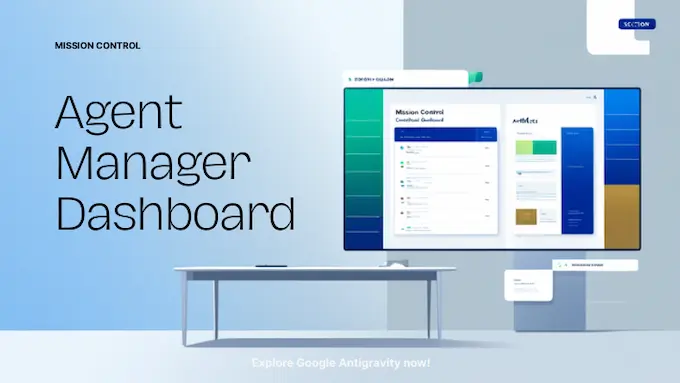
The Agent Manager is the place where you launch and supervise agents across workspaces. You can spin up multiple conversations, see their tasks, and skim artifacts without diving into code.
Typical pattern:
- Start an agent to do architecture research for a new service
- Start another to clean up tests in a legacy package
- Keep both running while you stay focused in the editor
Each agent maintains its own task list and artifacts. You do not see raw tool calls. You see human scale summaries like “Research aviation API options,” “Implement util wrapper,” “Verify results with live curl responses.” This is what makes the product feel like agentic software development instead of autocomplete with extra steps.
2.2 Editor An AI First Take On A Familiar Surface
The editor is a forked VS Code experience with a long list of AI helpers:
- Supercomplete suggests edits across the file instead of single tokens
- Tab to Jump moves your cursor to the next logical edit region
- Tab to Import fixes missing imports without breaking flow
- A right side agent panel shows file diffs, running processes, and artifacts
You can still work in a classic way, typing, tabbing, committing. The difference is that the agent sees the entire context, including artifacts and Knowledge Items, so your prompts can be higher level.
2.3 Browser An Agent Controlled Test Bench
The third surface is the integrated browser. With the Chrome extension installed, the agent can:
- Launch a local dev server
- Open the app in its own Chrome profile
- Click buttons, fill forms, scroll, and record the session
- Attach screenshots and recordings to the final walkthrough
This is the part that feels eerie the first time you watch it. The cursor moves by itself, types into fields, and then hands you a report of what worked and what failed.
3. Hands On Gemini 3 Coding And The Flight Tracker Demo

To understand the real experience, it helps to look at the demo flight tracker project. The developer starts Google Antigravity, picks light mode, signs in with a Google account, and creates a local workspace called flight-tracker.
The only prompt is roughly:
“Build a flight lookup Next.js web app where a user enters a flight number and sees start and end time, time zones, origin, and destination. Use a mock API for now and render results under the form.”
From there, the flow looks like this:
- The agent chooses a mode where it can take routine actions without constant approvals.
- It runs create-next-app in the terminal and scaffolds the project.
- It opens an implementation plan artifact that explains the layout, components, and verification steps.
- After your approval, it writes the code, runs the dev server, and launches the browser.
- In the browser, it tests the app with fake flights and records the session.
Later, the agent researches AviationStack, runs live curl requests with the API key you supply, and generates a proper util module. You get a markdown artifact describing the API, example payloads, and the implementation plan for integrating it.
This is where the phrase Gemini 3 coding actually means something concrete. The model is not just filling in functions. It is reading docs, hitting real endpoints, wiring env variables, editing components, testing in the browser, and summarizing the whole thing in a walkthrough. Your job becomes:
- Adjust the plan
- Comment on artifacts
- Accept or ask for revisions
- Use the editor tools to polish the last 10 percent
It feels more like code review and less like prompt whack a mole.
4. Install And First Steps How To Get Antigravity Running
Getting from “this looks cool on YouTube” to a running instance is where many developers hit friction. People report spinning login wheels, quota errors on the first prompt, and confusing browser behavior. So let us walk the basics, and then talk about how to fix Google Antigravity login issues in practice.
The official Google Antigravity download is available at antigravity.google/download. From there you pull the installer for macOS, Windows, or Linux.
4.1 System Requirements At A Glance
- macOS: Monterey or later, Apple silicon only
- Windows: 64 bit Windows 10 or later
- Linux: glibc 2.28 or higher, glibcxx 3.4.25 or higher
4.2 Step Guide To Install And Use It
Here is a compact checklist you can follow on day one.
Google Antigravity Install Steps Guide
Follow these Google Antigravity setup steps to get the agent first IDE running smoothly and avoid common login or browser issues.
| Step | Action | What To Watch For |
|---|---|---|
| 1 | Go to the official Google Antigravity site and download the installer for your OS | Make sure you are on the real antigravity.google domain |
| 2 | Install on the default system drive | On Windows, installs on the C drive tend to avoid odd login behavior |
| 3 | Set Chrome as your default browser | The login and browser agent rely heavily on Chrome integration |
| 4 | Launch Google Antigravity and click “Sign in with Google” | Use the same account you want for cloud access and quotas |
| 5 | Wait for the callback into the app and confirm you reach the Agent Manager | If it spins for minutes, restart with Chrome as default and C drive install |
| 6 | Create a new local workspace folder for a test project | Keep it small so you can see how the agent behaves on a simple codebase |
| 7 | Open the editor and run a small prompt like “Create a Hello World web page” | This is your smoke test for editor, terminal, and browser integration |
| 8 | Install the Chrome extension when prompted | This unlocks browser automation and walkthrough recordings |
| 9 | Explore the artifacts in the right sidebar after the first task completes | Get familiar with task lists, implementation plans, and walkthroughs |
| 10 | Try a slightly larger mission such as a CRUD app or a dashboard | Watch how the agent splits the work across tasks and surfaces |
If you are stuck in the login loop, the combination that often fixes it is simple:
- Install on the C drive on Windows
- Set Chrome as the default browser
- Retry the sign in flow
It is not elegant, but until the product hardens, this is the pragmatic way to fix Google Antigravity login problems and actually start coding.
5. Google Antigravity vs Cursor The Real World Comparison
This is the comparison most developers care about: Google Antigravity vs Cursor. Both are VS Code style environments that lean heavily on AI. Both can feel magical on a good day and frustrating when rate limits or model overloads hit.
A high level view:
- Workflow
- Cursor centers on the Composer and inline chat. You ask for refactors, tests, or new modules and it writes them directly into your files.
- Google Antigravity centers on the Agent Manager. You frame a mission, the agent creates artifacts, and you review them like documents.
- Context
- Cursor indexes your repo and keeps a strong sense of local context.
- Antigravity adds MCP, Knowledge Items, and browser context, so the agent can pull live schemas, logs, and external docs on demand.
- Autonomy
- Cursor is excellent at writing code, but browser testing and complex flows often require manual glue.
- Google Antigravity can write code, start the dev server, drive the browser, and prove that a feature works in a recorded walkthrough.
- User Experience
- Cursor feels more polished today. It is fast, stable, and the design language is coherent.
- Antigravity feels more ambitious and more fragile. People hit quota after one prompt, see login loops, or watch agents stall halfway through a task.
In practice, many power users will keep both. Cursor remains a strong daily driver. Google Antigravity is the experimental lab where you let agents run wild on greenfield features.
If you are chasing the best AI IDE label, the honest answer is this. Cursor still wins on reliability and UI smoothness. Antigravity wins on agent autonomy and depth of integration.
6. MCP And Knowledge Why Context Finally Feels Native
One of the more underrated ideas inside Google Antigravity is its use of the Model Context Protocol and Knowledge Items.
MCP lets the agent talk to external systems in a structured way:
- Databases like Neon or Supabase for live schemas
- Issue trackers like Linear for tickets
- GitHub for repositories and pull requests
- Documentation systems like Notion
Instead of you pasting schema snippets or log fragments into chat, the agent queries MCP servers directly, reads what it needs, and folds that into its plan.
Knowledge Items act as a long term memory layer. As you work, the agent distills recurring patterns into knowledge bundles that include summaries, code snippets, and artifacts. Later conversations can reuse them without redoing the research.
This combination is a big part of why agentic software development feels viable here. The agent is not trapped in the tiny window of your current file. It has a bridge to your real environment and a memory of how previous tasks were solved.
7. Pricing, Rate Limits And The “Free” Question
Right now Google Antigravity ships as a free public preview for individuals. You get:
- Access to Gemini 3 Pro
- Access to other Vertex models such as Claude Sonnet 4.5 and GPT style options
- Generous rate limits in theory, refreshed every five hours
In practice, early users report a wide spectrum of experiences. Some build full apps and rave about the walkthrough artifacts. Others hit quota after one or two prompts and watch the agent stall with overload errors.
The refresh model is tied to “amount of work,” not prompt count, which makes sense from an infrastructure standpoint. Long running agents that drive browsers cost more. Short local edits cost less. From a user standpoint it feels unpredictable.
This is one reason not to burn your bridges with Cursor yet. Treat Google Antigravity as an extra engine you light when you want to attempt a big leap, not as the only motor on the plane. For detailed pricing information, check the official documentation.
8. Privacy, Telemetry And Trust
No serious IDE discussion in 2025 can ignore data. The terms for Google Antigravity explicitly mention collecting “interactions” to improve the product and the models that power it. There is a telemetry toggle that controls whether your interactions are used for evaluation and training.
The subtle part is that “telemetry” and “training data” are often overloaded terms. Turning off telemetry may stop some logging, but it does not always guarantee your data never flows into model improvement.
If you are working on sensitive code, you have three sane options:
- Keep Google Antigravity on personal projects and learning repos
- Use it for non critical slices of production work where leakage risk is acceptable
- Wait for a future team or enterprise plan with clearer contractual guarantees
Until then, it is your threat model and your call.
9. Strengths, Weaknesses And The Killed By Google Fear
Every developer who has lived through Google Reader, Inbox, and a dozen other shutdowns has the same reflex. This looks amazing. Will it vanish in two years.
On the plus side:
- The integration between editor, Agent Manager, and browser feels genuinely new
- The artifact system makes agent work auditable and easy to review
- The combination of Gemini 3, Claude, and other models in one Google Antigravity vs Cursor style playground is extremely handy
- The trajectory of the demo flight tracker shows how far you can push full stack missions
On the minus side:
- Login loops and spinning wheels already frustrate early adopters
- Rate limits feel rough in real usage
- Some tasks stall silently and need manual nudging
- People are already joking about its potential future on the “Killed by Google” list
The smart stance is neither hype nor cynicism. It is to treat this as an early look at what IDEs will probably become over the next few years, whether under Google’s label or not.
10. Concrete Use Cases Where Antigravity Shines
To make this less abstract, here are some scenarios where Google Antigravity already makes sense, along with who benefits most.
Google Antigravity Agent Use Cases
Explore practical Google Antigravity use cases that show how agents scaffold apps, wire APIs, map legacy systems, and help different teams ship faster.
| Use Case | What The Agent Does | Who Benefits |
|---|---|---|
| Greenfield web app | Scaffolds a Next.js project, wires routes, styles components, tests in the browser, and records walkthroughs | Solo developers and startup founders |
| API integration | Reads docs through MCP, hits live endpoints, generates typed client utils, and swaps out mock data | Backend and full stack engineers |
| Legacy codebase mapping | Crawls the repo, builds an architecture report, and leaves artifacts you can comment on | New hires ramping on large monoliths |
| Test expansion | Adds unit and integration tests based on existing patterns, then runs them and explains failures | Teams with test debt and few QA engineers |
| Documentation uplift | Generates implementation plans and walkthroughs that double as living docs | Any team tired of stale wiki pages |
| Experimenting with agents | Spins up multiple parallel agents to tackle research, cleanup, and feature work at once | Developers exploring agentic software development patterns |
| Cross model comparison | Uses Gemini, Claude, and OSS models in one project so you can see behavior differences | Tool builders and AI curious engineers |
If you want a structured playground to evaluate Gemini 3 coding against other models on real tasks, this table is your roadmap. For professional use cases, Google has detailed documentation.
11. Should You Switch And What To Do Next
So where does this leave us.
If you are a conservative engineer with a stable setup, keep Cursor right where it is. It remains an excellent daily driver. You can still call it the best AI IDE in terms of polish and stability without blinking.
If you are curious about where things are going, you should absolutely install Google Antigravity, point it at a new project, and let it try to own 80 to 90 percent of the work. Watch how it plans. Watch how it fails. Watch how it explains itself.
Use it to:
- Prototype features that you would normally spread over a weekend
- Stress test your own prompts and workflows for agentic software development
- Learn how to design tasks and review artifacts rather than micromanage lines of code
The future of coding will not be about arguing over which autocomplete is snappier. It will be about learning to manage agents that can design, implement, test, and document whole slices of a system while you steer.
So pick a quiet evening, grab the installer, work through any login quirks, and give Google Antigravity a real mission. If you discover that it truly changes how you ship software, keep pushing it. If not, you will still have learned something important about the direction our tools are heading.
Either way, your next commit will probably involve less typing and more thinking, which is exactly where developers should want to be.
Is Google Antigravity better than Cursor for AI coding?
Google Antigravity is stronger when you want agentic workflows, with an Agent Manager, autonomous browser testing, and artifacts that document each task. Cursor still feels smoother as a daily driver IDE with a polished Composer flow. In practice, many developers use Cursor for stability and Antigravity for complex agent driven missions.
Is Google Antigravity free to use?
Yes. Google Antigravity is currently available as a no cost public preview for individual developers. You get free access to Gemini 3 Pro and other models, but usage is controlled by rate limits that refresh roughly every few hours. There are no paid team or enterprise tiers yet.
How do I fix the Google Antigravity “spinning wheel” login error?
If Google Antigravity is stuck on “setting up your account,” common fixes are to reinstall it on the C drive on Windows and set Google Chrome as your default browser, then retry sign in. Several users report that this combination resolves the infinite spinning wheel during login.
Does Google Antigravity support VS Code extensions?
Yes. Google Antigravity is built on the VS Code codebase and supports extensions from the Open VSX ecosystem, so many familiar plugins work. You can also import settings and profiles from tools like Cursor, which auto installs matching extensions where compatible. This makes migration far less painful.
What models are available in Google Antigravity?
Google Antigravity offers “model optionality” inside one IDE. You can use Gemini 3 Pro for agentic coding, Claude Sonnet 4.5 for alternative reasoning behavior, and GPT-OSS style models for open source flavored workflows, all behind the same agent interface and rate limit system.