
Introduction
OpenAI dropped GPT Image 1.5 and, within hours, image people did what image people do, they turned it into a tournament. Leaderboards, side by sides, hot takes about “realism,” and at least one person insisting the model is “too warm” like it accidentally moved to Dubai.
If you build products or publish content for a living, you don’t need the drama. You need a repeatable way to get usable images, to edit them without breaking everything, and to keep a character’s face from mutating across ten variations. This guide is that playbook for GPT Image 1.5, with the quick wins, the gotchas, and the prompts that actually survive contact with reality. Think of it as a field guide to the ChatGPT new image model, written for people who want results, not screenshots.
Along the way we’ll benchmark it against Nano Banana AI, dig into the new ChatGPT images workflow, and map out when it makes sense to stick with your current toolchain.
Table of Contents
1. What Is GPT Image 1.5 In Practical Terms
GPT Image 1.5 powers the new Images experience inside ChatGPT. It also ships in the API as the same core model, built to handle both generation and editing with stronger instruction following than the older generation.
The important shift is not “better pictures.” It’s control. You can ask for a small change and, more often than not, you get a small change. Lighting and composition are less likely to drift. Faces are less likely to get reinterpreted like the model is doing improv.
OpenAI also claims two business-friendly improvements: up to 4× faster generation and roughly 20% cheaper image inputs and outputs than the previous model family. Speed changes behavior. Cheaper outputs change whether your feature ships.
1.1 Where The New ChatGPT Images Experience Helps
The new ChatGPT images UI matters because it reduces friction. It turns the ChatGPT new image model into something you can hand to a teammate without a training session. Non-technical teammates can iterate, save prompts, and keep a thread of edits without learning an app. That alone is a productivity upgrade, even before you touch the API.
2. GPT Image 1.5 Vs Nano Banana AI: Who Wins What
Let’s call the rivalry what it is: default aesthetics versus default obedience. Nano Banana AI often wins on casual photorealism. Skin texture looks less airbrushed. Indoor lighting feels messier, more like a phone photo. If your prompt is short and vague, Nano Banana AI can still deliver something that looks “real” faster than you can explain what you wanted.
GPT Image 1.5 wins when the prompt has structure: layout, constraints, exact text, or multi-step edits. It tends to take the brief seriously. That’s why developers and designers are gravitating toward it even when they admit the other model sometimes looks more natural out of the box.
A simple decision rule:
- Choose Nano Banana AI for quick photorealistic vibes.
- Choose GPT Image 1.5 for prompt adherence, editable assets, and workflows you can repeat.
3. Removing The AI Look: Kill The Warm Grade And The Plastic Skin
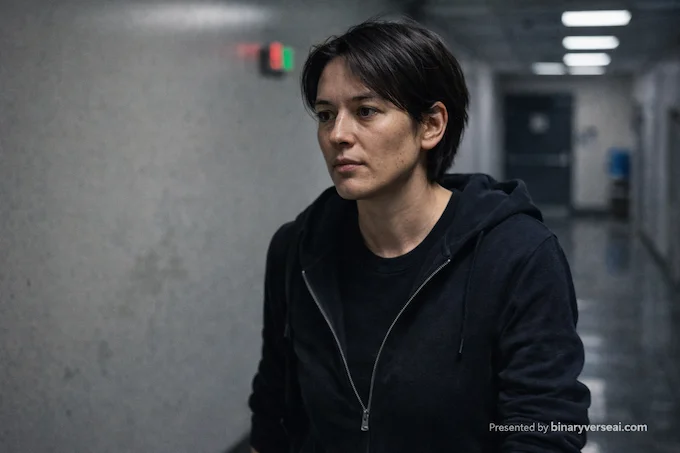
Most “AI look” complaints come from three defaults: warm color grading, soft studio lighting, and over-smoothing. You don’t fix that by begging for “realism.” You fix it by forcing the model into a less flattering camera.
3.1 The Anti-Gloss Constraint Block
Paste a block like this at the end of your prompt:
- Natural color balance, no warm filter
- Visible skin texture, pores, fine lines
- Harsh flash or overhead fluorescent lighting
- Slight noise, minor motion blur
- Unedited iPhone snapshot feel, or CCTV footage
It’s not poetic. It works. With GPT Image 1.5, this block pushes the output away from “brand photoshoot” and toward “a real moment.”
3.2 The One-Change Iteration Rule
Do not rewrite your prompt every time. Run a clean base prompt, then iterate with single changes:
- “Make the lighting colder.”
- “Add glare from a window.”
- “Reduce skin smoothing.”
That’s how you steer without confusing the model.
4. Character Consistency: The Part Everyone Actually Cares About
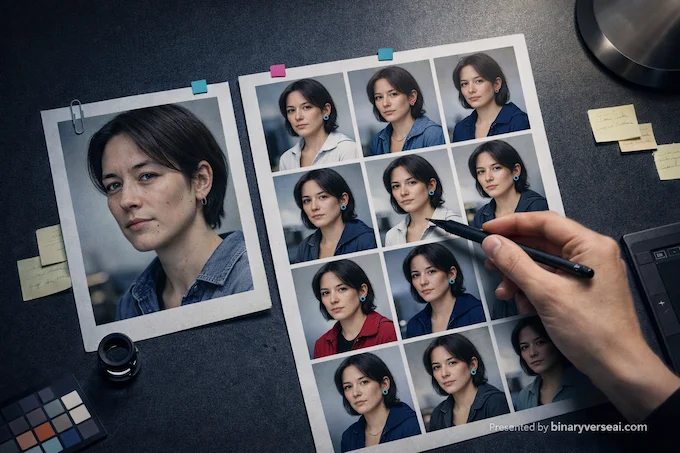
One great image is easy. Ten consistent images is the hard mode. GPT Image 1.5 is the first general model in ChatGPT images where character consistency feels achievable without training your own LoRA or building a custom pipeline.
4.1 The Character Anchor Technique
- Generate a base character you like.
- Write a boring, specific anchor description.
- Use editing or referenced generation so the model can “see” the original.
Your anchor should mention stable identifiers: face shape, freckles, scars, hairstyle, eyewear, jewelry. Avoid mood words like “cool” or “pretty.” They drift.
Example anchor:
“Same person as reference, oval face, faint freckles across the nose, short black bob with blunt bangs, thin gold hoop earrings, small mole above left eyebrow. Preserve facial likeness exactly.”
Then your prompt becomes scene direction, not a lottery ticket.
4.2 The Drift Shield Phrase
For multi-step work, repeat this sentence in every edit:
“Change only what I specify. Keep pose, framing, lighting, and likeness the same.”
It feels repetitive. GPT Image 1.5 responds well to repetition.
5. Precision Editing: Add, Subtract, Combine Without Collateral Damage
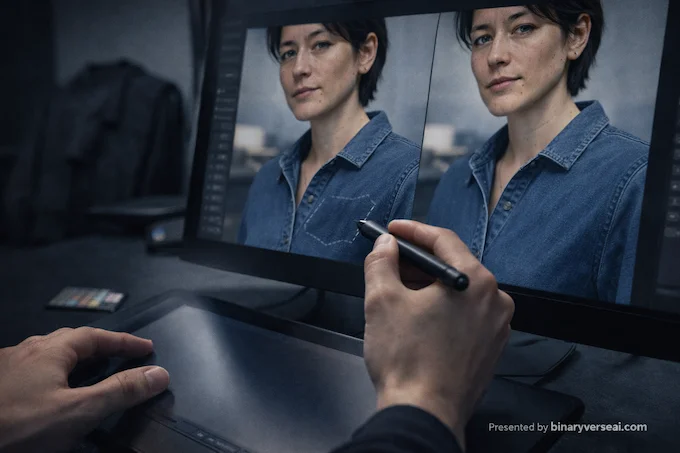
Classic inpainting tools can change a logo and accidentally rewrite the whole shirt. You get a new fold pattern, new lighting, and a new jawline as a bonus. GPT Image 1.5 is better at surgical edits if you write constraints like you mean them.
5.1 A High-Signal Edit Prompt
“Remove the logo from the shirt. Do not change anything else. Preserve fabric folds, shadows, skin tone, face, and background. Keep the camera angle identical.” That’s the style. Be direct. List what must not change.
5.2 Virtual Try-On That Looks Like Real Clothing
Virtual try-on succeeds when you lock the person and let only the garment move:
- “Do not change face, body shape, pose, hair, or expression.”
- “Replace only the jacket.”
- “Match lighting, shadows, and draping to the existing pose.”
If you build ecommerce tooling, this is where GPT Image 1.5 starts looking like an actual feature, not a demo.
6. Infographics: The Quiet Superpower
A lot of image models can draw. Fewer can write. Text rendering is the difference between “cute graphic” and “usable asset,” especially if you’re building an infographic AI generator or a content pipeline for marketers.
GPT Image 1.5 is not perfect, but it’s materially better at dense, small text than many popular models. That makes it good for posters, labeled diagrams, and “visual wiki” explainers.
6.1 An Infographic Prompt Template
- Output: vertical poster, clean margins
- Title: exact text in quotes
- Sections: list them explicitly
- Diagram: arrows, icons, callouts
- Typography: bold sans-serif, high contrast, perfectly legible
- Constraints: no extra text, no watermarks, no logos
If you need a chart, specify the data and labels like a spec. The model is doing instruction following, not guessing your intent. This is the “text to infographic AI” approach that actually scales.
7. UI Mockups And Logos: Useful, If You Treat It Like Design Work
For UI mockups, you want shipped-product vibes, not concept art. For logos, you want simple shapes, strong negative space, and zero trademark trouble.
7.1 UI Mockup Prompting Tips
- Say “real app UI” and name the platform
- Ask for readable text and real components
- Keep decoration minimal
- Specify hierarchy, spacing, and a white background
This is the fastest way to get presentable mockups for decks and docs.
7.2 Logo Prompting Tips
- Ask for “original, non-infringing”
- Ask for “vector-like, flat design”
- Demand “one centered mark, generous padding”
- If you need a cutout asset, ask for transparency
If you’re designing at scale, GPT Image 1.5 can be a rough-draft factory that produces enough options to help you decide what to commission.
8. Developer Corner: API Choices, Pricing, And The Reality Of Latency
If you’re building an AI image editor API, you care about endpoints, limits, and the cost profile. The Image API supports generations and edits. The Responses API can generate images inside a conversational flow, but support for the newest model in that tool pipeline can lag behind. If you want the best quality today, the Image API is the straightforward path.
8.1 API Pricing Snapshot
GPT Image 1.5 API Pricing Table
| Category | Model | Input (Per 1M Tokens) | Cached Input (Per 1M Tokens) | Output (Per 1M Tokens) |
|---|---|---|---|---|
| Text | gpt-image-1.5 | $5.00 | $1.25 | $10.00 |
| Text | gpt-image-1 | $5.00 | $1.25 | – |
| Text | gpt-image-1-mini | $2.00 | $0.20 | – |
| Image | gpt-image-1.5 | $8.00 | $2.00 | $32.00 |
| Image | gpt-image-1 | $10.00 | $2.50 | $40.00 |
| Image | gpt-image-1-mini | $2.50 | $0.25 | $8.00 |
8.2 The Latency Playbook
Latency scales with size and quality. Keep your UX fast by splitting work:
- Iterate on low or medium quality
- Render finals on high quality
- Cache repeated prompts and reference inputs when possible
This is also where “ChatGPT images free” versus paid plans becomes practical. Casual creation is fine in the UI. Product-grade throughput belongs in the API.
9. Safety And Filtering: Build For Failure Paths
Modern models filter prompts and outputs. Some users treat that like censorship theater. Product teams treat it like table stakes.
The key is not arguing about it. The key is designing around it. When a request fails, give a clear message, suggest a compliant alternative, and keep the user moving. GPT Image 1.5 still has guardrails, so your app needs a graceful fallback, not a dead end.
10. Prompting Tips You Can Copy And Reuse
Here are the patterns that consistently improve results with GPT Image 1.5.
10.1 Write Like A Brief
Use labeled blocks. Scene, subject, constraints, exclusions, intended use. You’ll get fewer surprises than you do with one big paragraph.
10.2 Repeat Invariants In Every Edit
If identity or layout matters, restate the invariants every time. Don’t trust memory.
10.3 Put Exact Text In Quotes
If you need text inside the image, write:
“Text, exact: ‘YOUR COPY HERE’. Bold sans-serif, centered, high contrast, appears once, perfectly legible. No extra text.”
10.4 Iterate With Single Changes
Small deltas beat full rewrites. Keep the base prompt stable. Change one thing at a time.
11. The Scoreboard: Where The Models Land On LMArena Leaderboards
Leaderboards are not objective truth, but they are a useful signal when thousands of people vote on preferences. In one Text-to-Image snapshot, GPT Image 1.5 took the top spot.
GPT Image 1.5 LMArena Leaderboard Table
| Rank | Model | Score | Votes |
|---|---|---|---|
| #1 | gpt-image-1.5 | 1264 | 8,871 |
| 2 | gemini-3-pro-image-preview-2k (nano-banana-pro) | 1235 | 13,764 |
| 3 | gemini-3-pro-image-preview (nano-banana-pro) | 1235 | 43,546 |
| 4 | flux-2-max | 1168 | 5,388 |
| 5 | flux-2-flex | 1157 | 23,330 |
| 6 | gemini-2.5-flash-image-preview (nano-banana) | 1155 | 649,795 |
| 7 | flux-2-pro | 1153 | 27,684 |
| 8 | hunyuan-image-3.0 | 1152 | 97,408 |
| 9 | flux-2-dev | 1149 | 10,537 |
| 10 | seedream-4.5 | 1147 | 20,022 |
The interesting part is not rank 1. The interesting part is that the gap is now about defaults and workflows, not basic capability.
12. Verdict And Call To Action: Pick The Tool That Saves Time
If your priority is effortless photorealism with minimal prompting, Nano Banana AI can still feel like the shortest path to “that looks real.”
If your priority is control, editing, text, and consistency, GPT Image 1.5 is the one that behaves like a tool you can build around. That matters for educators making diagrams, marketers shipping ads, designers generating variants, and developers wiring image features into apps.
Do this next: pick one real task you care about and turn it into a tiny prompt library. Five prompts, five invariants, and a one-change iteration habit. Use the ChatGPT images UI to prototype, then move the winners into your codebase when you need scale.
If you want leverage, stop chasing perfect prompts and start building a repeatable workflow. GPT Image 1.5 rewards that approach, and your future self will thank you.
- https://openai.com/index/new-chatgpt-images-is-here/
- https://platform.openai.com/docs/guides/image-generation
- https://cookbook.openai.com/examples/multimodal/image-gen-1.5-prompting_guide
- https://github.com/openai/openai-cookbook/blob/main/examples/multimodal/image-gen-1.5-prompting_guide.ipynb
- https://openai.com/api/pricing/
- https://lmarena.ai/leaderboard
Is GPT Image 1.5 better than Nano Banana Pro (Gemini 3)?
It depends on what you care about. Nano Banana Pro often looks more naturally photoreal in casual lighting, especially skin texture and “real camera” vibes. GPT Image 1.5 wins when the prompt has rules, like exact text, layout constraints, consistent characters across scenes, or multi-step edits where you need the image to stay stable.
How do I fix the yellow tint or “AI look” in ChatGPT images?
Use anti-studio constraints and cold/neutral lighting language so the model stops defaulting to warm, polished grading. Copy/paste this prompt core:
“Neutral white balance, no warm color grading”
“Cool daylight (6500K), realistic exposure, no studio lighting”
“Shot like an iPhone snapshot, harsh flash, imperfect, natural colors”
“No beauty lighting, no cinematic teal-orange, no soft glow”
If it still drifts warm, repeat: “Keep colors neutral, remove yellow cast” as the final line.
Can GPT Image 1.5 generate consistent characters across different photos?
Yes, if you anchor the character first. The reliable workflow is:
Generate a “base” character image (your reference).
Reuse it via Edit / reference-based generation, changing only scene, pose, wardrobe, or background.
Restate the invariants every time: “same face, same hair, same age, same proportions, same likeness.”
The trick is boring but effective: one strong anchor image, then small controlled edits instead of re-rolling from scratch.
Is GPT Image 1.5 free to use in ChatGPT?
It’s rolling out inside ChatGPT for free users, but with tighter usage limits. Paid tiers generally get higher limits and faster generation, with Pro positioned as the “most access, least waiting” plan. If you need predictable volume or you’re building a product, the API is separate billing from ChatGPT plans, so treat it like production infrastructure, not a casual feature.
What are the best use cases for the GPT Image 1.5 API?
The highest ROI use cases are the ones where image generators usually fail: text, consistency, and controlled edits. Top picks:
Infographic AI generator workflows (charts, labeled diagrams, dense readable text)
Virtual try-on and catalog variants (swap clothing while preserving identity and lighting)
Logo + brand kit generation (clean shapes, spacing, reliable iterations)
UI mockups with real, legible interface text
Localization edits (translate text while preserving layout)
If your app needs “edit this image, but don’t break everything else,” this is exactly the sweet spot for an AI image editor API.